Open it
Section titled “Open it”Drag a picture, tap ⌘ for the Tools wheel, and drop on Edit. Crop, Resize and Blur open the same window at a small size beside the picture, with just that tool. It works on the full-size picture, not the page’s small copy.
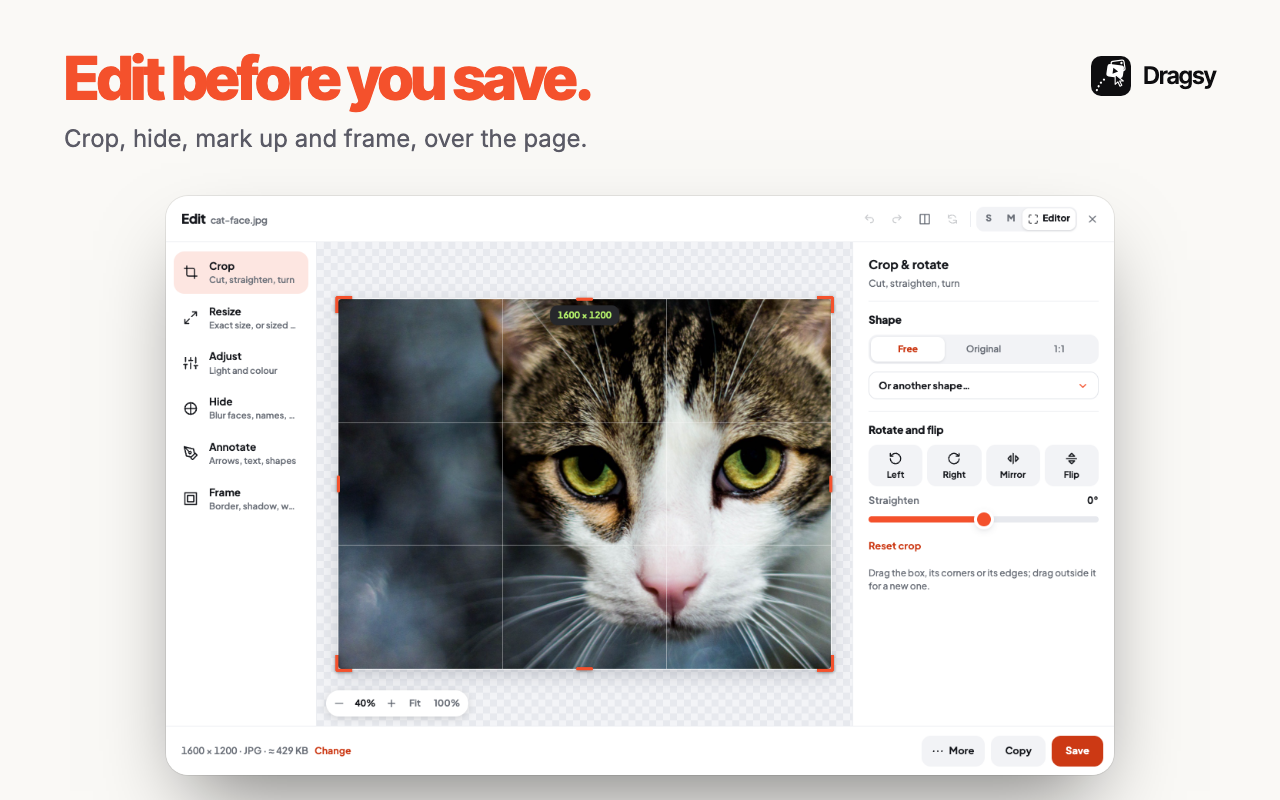
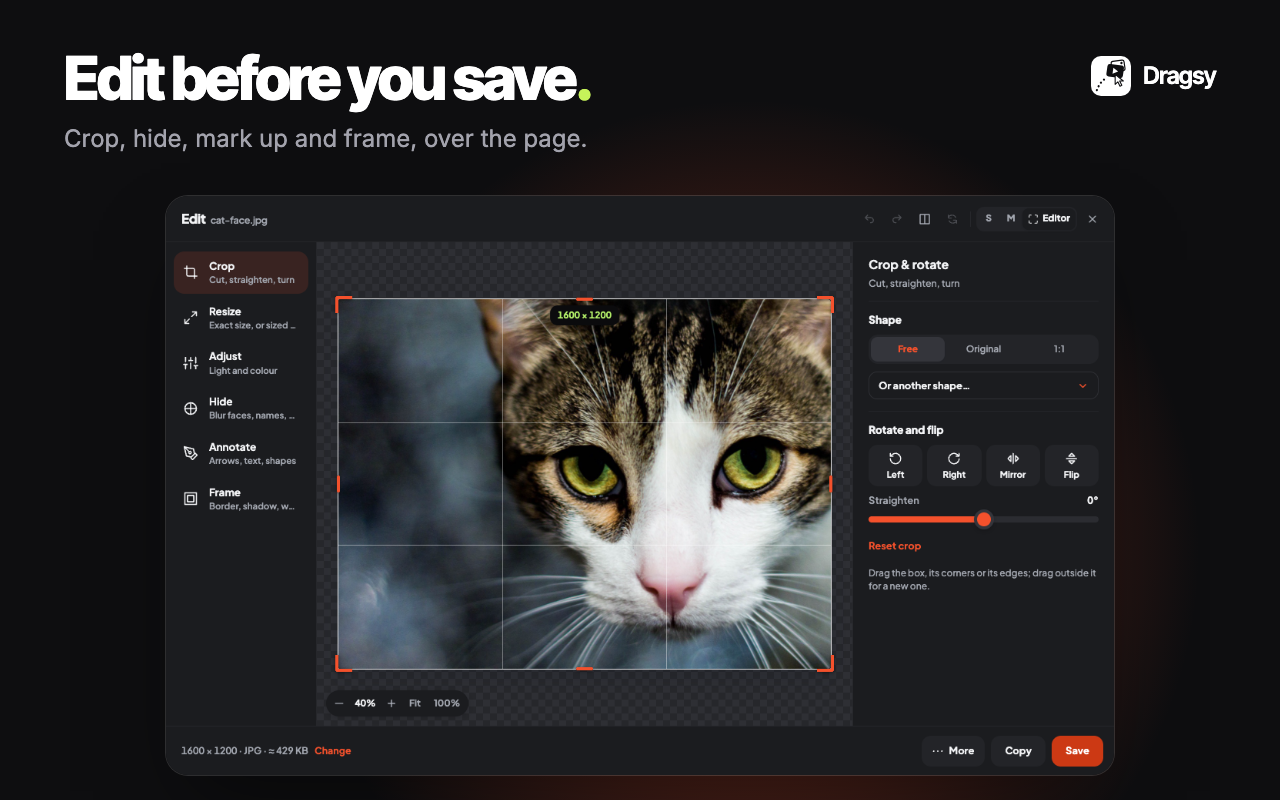
Three sizes
Section titled “Three sizes”S and M sit beside the picture; Editor is large, with every tool and its settings at once. E switches between them. Drag the window by its header to move it. On a small browser window it steps down to the size that fits. Settings › Look › Editor look gives it a Classic or a Glass (see-through) look.
One editing window is open at a time: opening another tool brings the open one forward, or asks you to save or close it first if it has unsaved edits.
The tools
Section titled “The tools”- Crop C: free or a shape (square, 4:5, 16:9 and more), in real pixels; turn, flip, straighten.
- Resize S: exact pixels or %; Stretch, Whole (fits inside) or Crop to fill; sizes for Instagram, Stories, X, YouTube, LinkedIn and link previews.
- Adjust A: looks (B&W, Vintage, Vivid, Cool, Warm), brightness, contrast, saturation, warmth, sharpen. Compare shows before and after, split by a line you drag.
- Hide H: a box, an ellipse or a brush; blurred, pixelated, smudged, a solid cover, a sticker, or Secure (nothing underneath can be recovered). Every QR code hides each code in the picture in one click. Same areas puts the same hidden areas on every picture in your Queue.
- Annotate N: arrows, lines, boxes (rounded, filled), ellipses, numbered steps, callouts, pen, highlighter, spotlight, magnifier, stickers, and text in Sans, Serif or Mono, on a box or outlined.
- Frame F: the picture on a colour or a blurred copy of itself, in a shape; rounded corners, a shadow, and your watermark (remembered for next time).
Change what you’ve added
Section titled “Change what you’ve added”Click any mark or hidden area, from any tool, to pick it: move it, resize it, change its colour or style, or press Delete. What you just added stays picked, so the next colour applies to it. ⌘Z undoes; Reset goes back to the original picture, and Undo brings the edits back.
Zoom with + -, fit with 0, hold Space to pan. All the keys.
Save or copy
Section titled “Save or copy”Choose PNG, JPG, WebP or PDF; the quality and the file’s size update as you go. Add smaller copies if you want them (for mail, for the web). Save (Enter) or Copy. More holds every other wheel item (Save as, Look closer, Share, Queue), run on the picture as edited; items about where the picture came from use the original.